
Getting Started
Installation
See the Download page for installation instructions.
First Launch
When you first launch Traq, it will:
- Create a data directory at
~/.local/share/traq/ - Initialize the SQLite database
- Start capturing screenshots automatically
Basic Usage
Timeline View
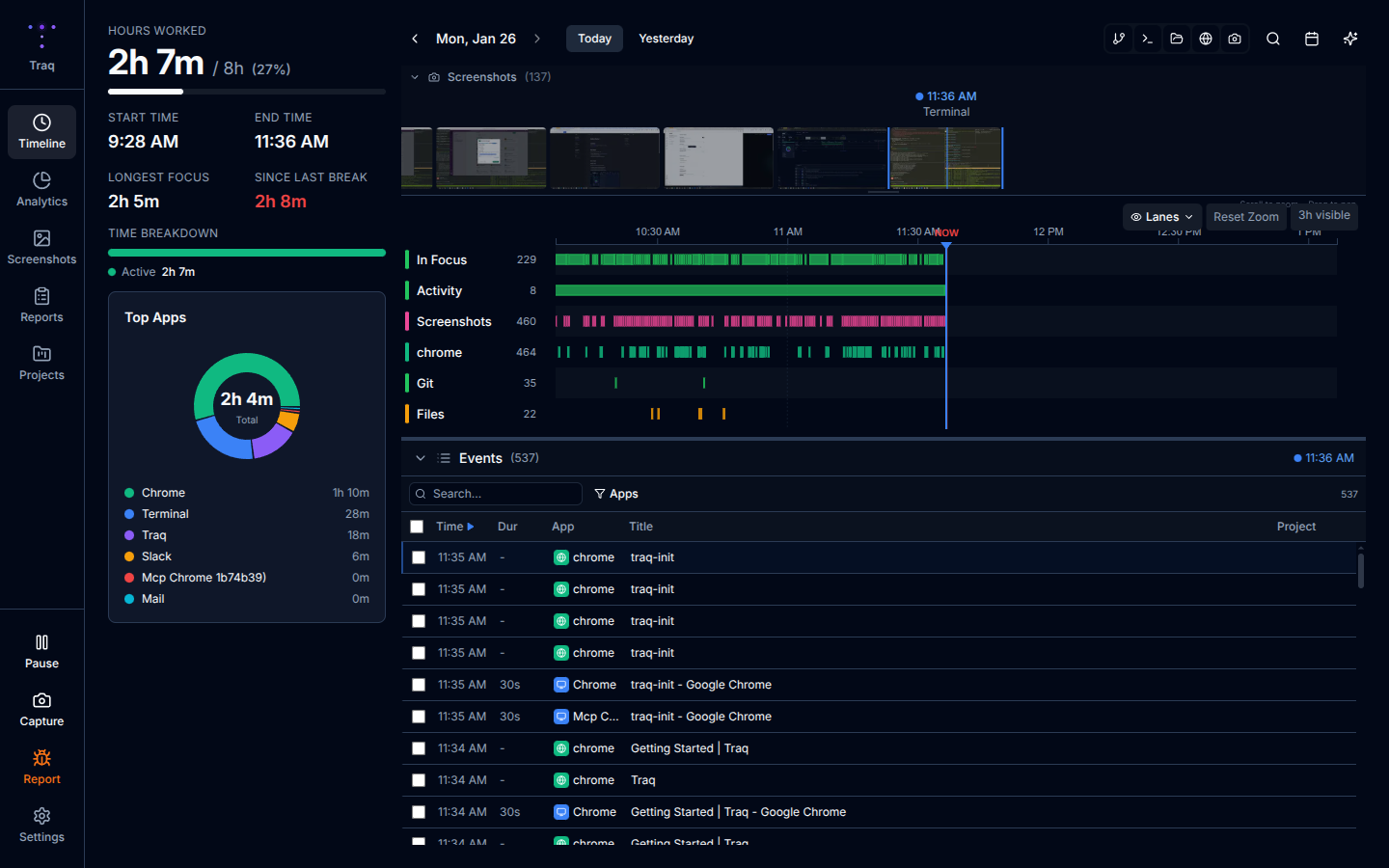
The main view shows your activity timeline:
- A calendar heatmap showing activity by day
- Click any day to see session breakdowns
- Browse screenshots from specific time periods
Analytics
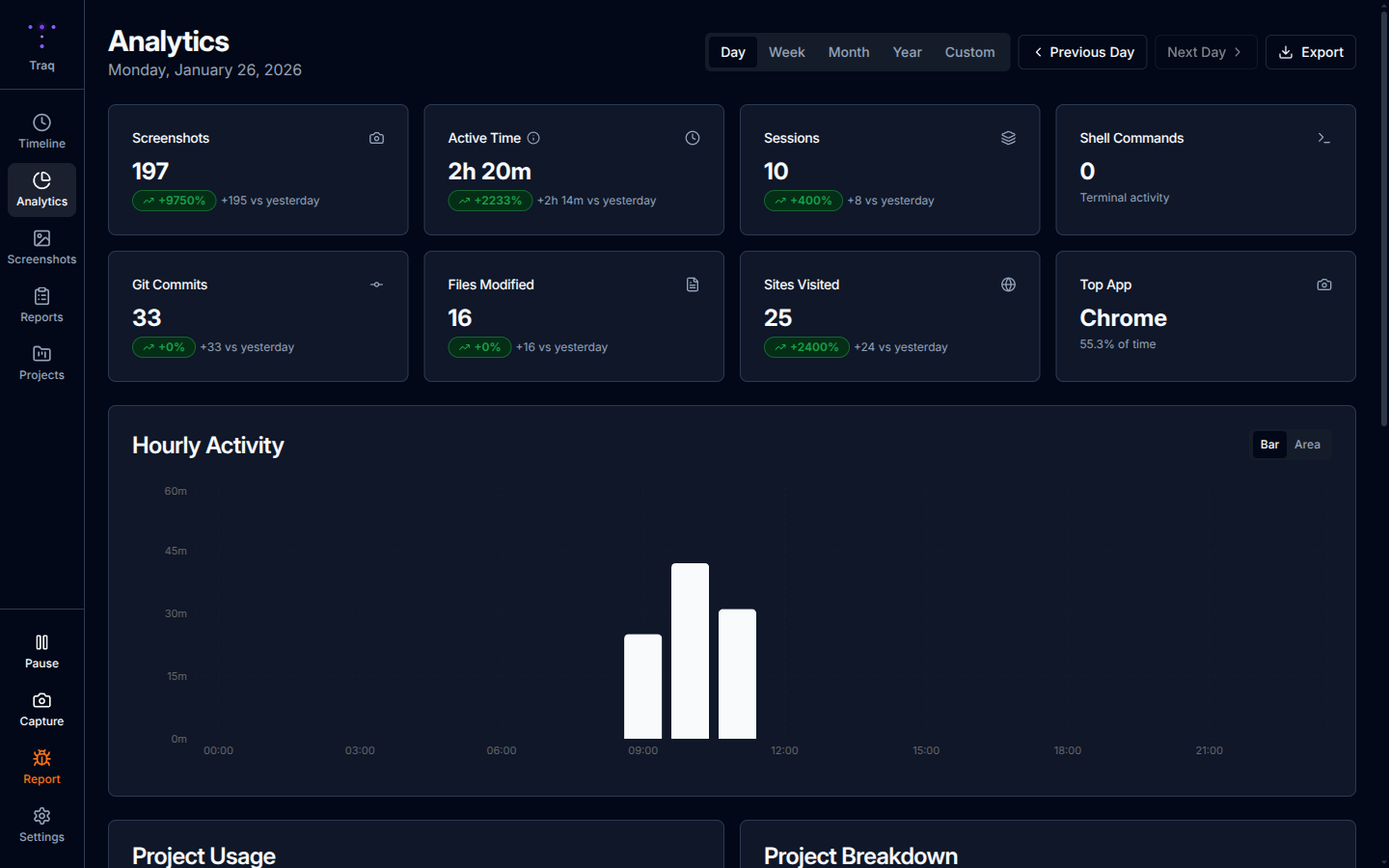
The Analytics view provides:
- Charts showing time spent per application
- Activity patterns by hour and day of week
- Trends over time
Settings
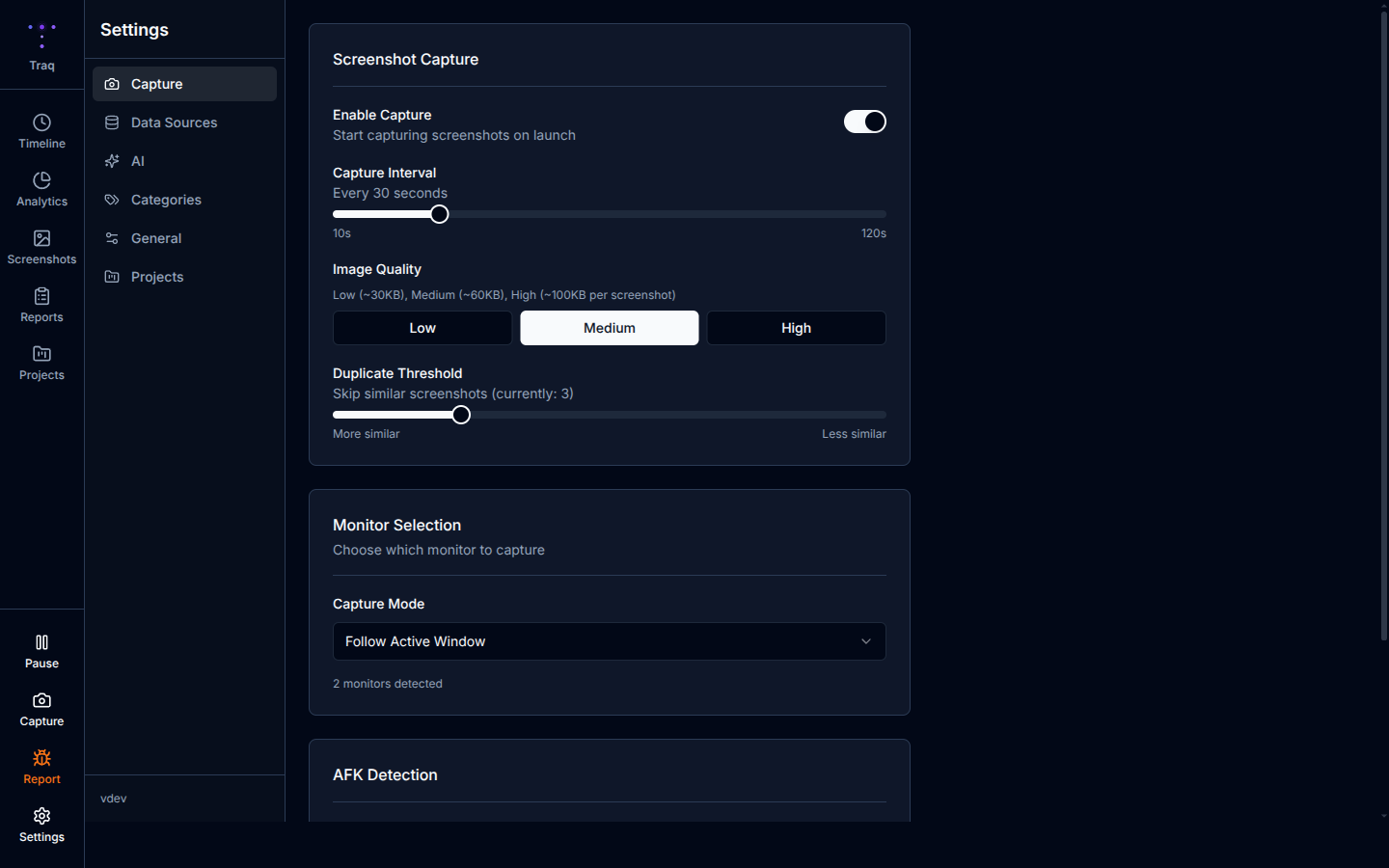
Access Settings to configure:
- Capture interval (how often to take screenshots)
- Image quality and format
- AFK timeout duration
Stopping Capture
To temporarily pause screenshot capture:
- Go to Settings
- Toggle the capture setting off
Or simply close the application - it only captures while running.